
Part 1: Django Site Admin
In the ISKME Django backend, a site administrator must create the initial tool consumer.
Tool Consumer
Log in to the ISKME Django backend with administrator access.
Scroll down to the LTI 1.3 section.
Click on Tool Consumers.
Add Tool Consumer.
Give the tool consumer a name. (We suggest using the name of the institution or organization connecting.)
Click the plus (+) button to create a tool key. (Typically, you would create a new tool key instead of reusing one of the options in the dropdown.)
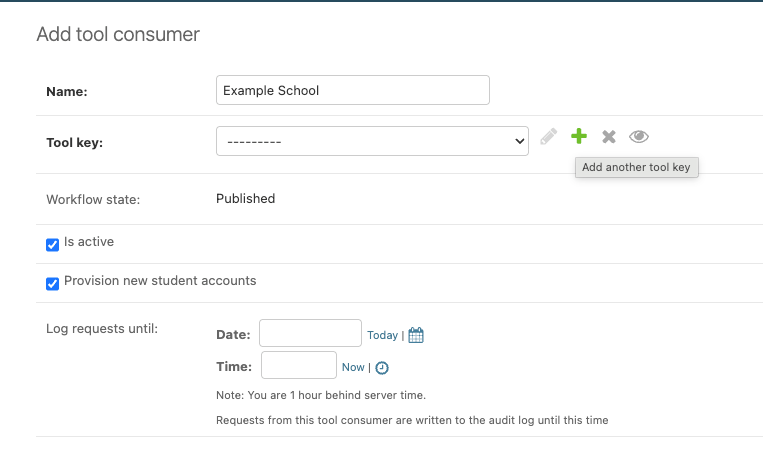
Alt text: Django screen to add a new tool consumer. Focus is on the plus button that allows you to “add another tool key.”
Give the tool key a name of your choice. We suggest using the name of the institution or organization connecting. Save.
Leave “is active” and “provision new student accounts” checked.
For the first week an LTI connection is active, you may optionally wish to turn on logging, which can help ISKME diagnose any issues that arise with the configuration.
Tool Settings
The issuer in Canvas may differ if the institution connecting is using a self-hosted version of Canvas. Instructure offers more information about what to use in the issuer field.
The most common scenarios for Issuer are:
https://canvas.instructure.com (Production environment launches)
https://canvas.beta.instructure.com (Beta environment launches)
https://canvas.test.instructure.com (Test environment launches)
For client id, you’ll get this later. For now add something like [placeholder], but make it unique to the organization. Example: [placeholder example organization name here]
Fill in the following fields:
Auth login URL: (Provided by ISKME)
Auth token URL: (Provided by ISKME)
Key set URL: (Provided by ISKME)
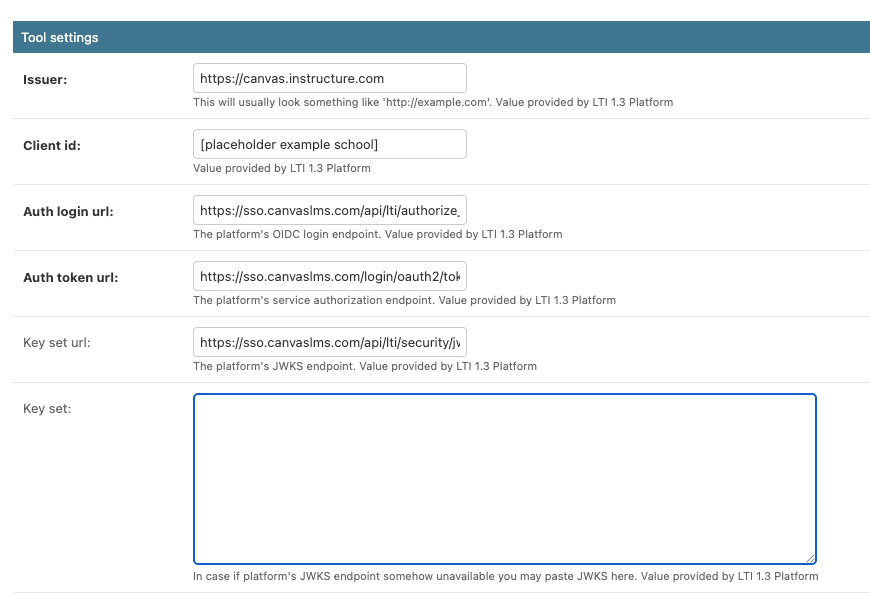
Alt text: The tool settings portion of the tool consumer in Django, populated with the fields mentioned in the text.
Finish Setting Up the Tool Consumer
Scroll down and Save. You will see a message that the tool consumer was created successfully.
Provide Info from the Following Fields to the LTI Administrator
Redirect URL
OpenID Connect Initiation URL
Tool JWKS URL
Part 2: Canvas LTI Administrator
Create a Developer Key
Log into your Canvas account.
Click Admin.
Click on the Account where you wish to install the tool.
On the left nav, click Developer Keys.
Click the + Developer Key button.
Choose LTI Key from the dropdown.
Choose Manual Entry as the method.
Fill in Title, Description and Key Name fields with a memorable title.
Copy the “Redirect URL” provided to you by the site administrator into the Redirect URL and Target link URL fields.
Copy the OpenID Connect Initiation URL into the OpenID Connect Initiation URL field.
Very important: Be sure not to leave any blank spaces before or after the URLs when copying and pasting.
Under JWK Method, choose Public JWK URL.
Enter the Tool JWKS URL provided to you by the site administrator in the Public JWK URL field.
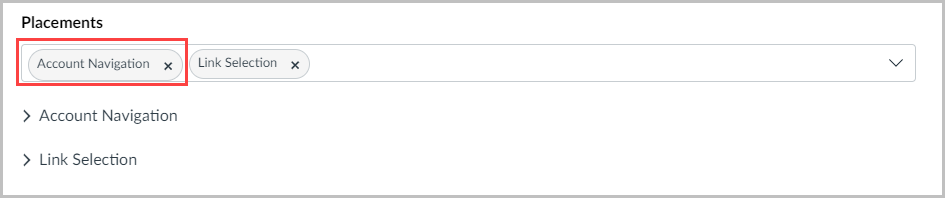
Click on the X to remove Account Navigation from Placements.
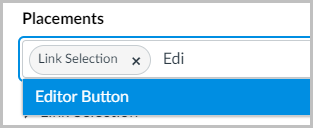
Start typing Editor Button. Select Editor Button.
Open Link Selection and Editor Button to show more fields.
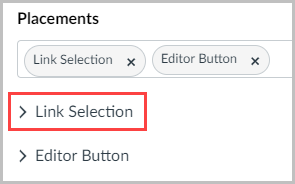
Make sure LTI Deep Linking Selection is selected on both. Ignore the warning message.
Copy the Redirect URL under Target Link URL.
Recommended: In the Text fields under Editor Button and Link Selection, give those a memorable title (these can be the same as the title above).
Save. This will return you to the Developer Keys area.
Leave the green check box checked on the developer key.
On the Developer Keys screen, under the key you just set up, click on View in Canvas Apps.
Click Copy Client ID to copy the Client ID. (You will provide this to your ISKME django site administrator.)
Copy the Deployment ID. (You will provide this to your ISKME django site administrator.)
Click Unlock App and unlock the App.
Provide the client ID and deployment ID to your ISKME django site administrator.
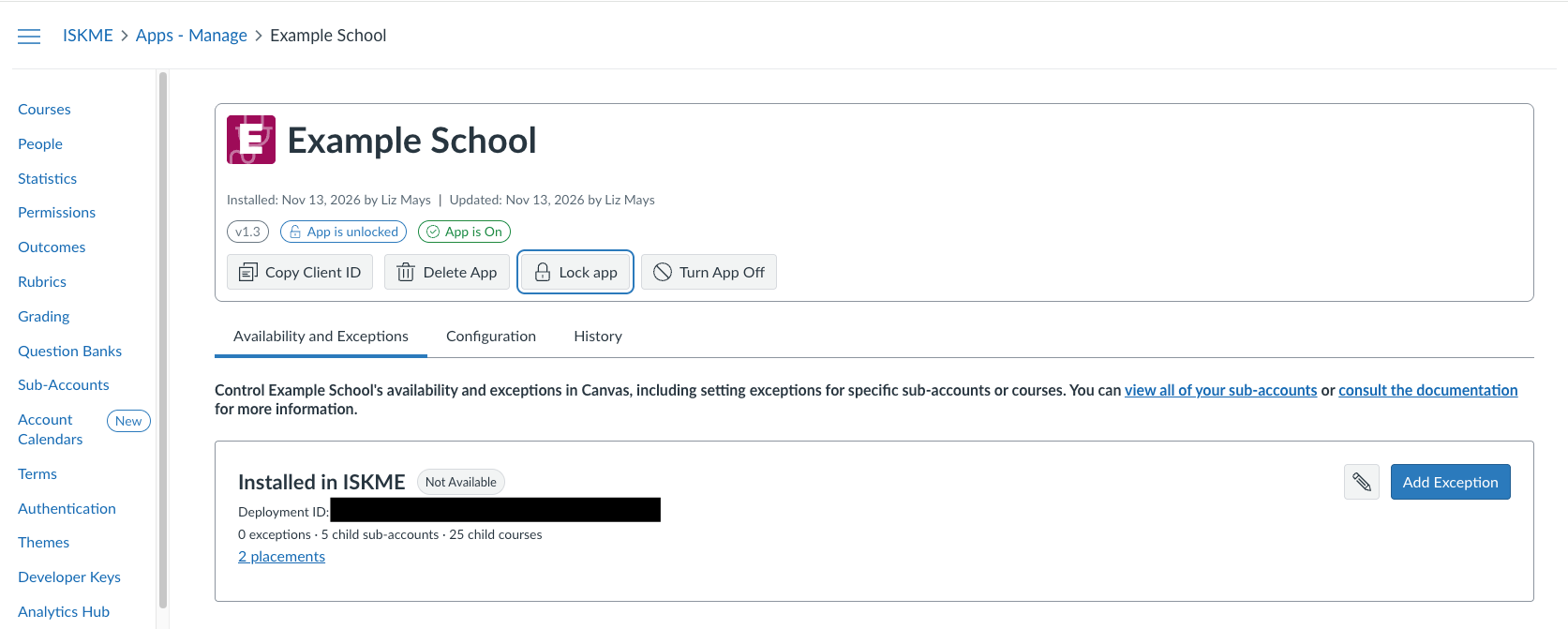
Alt text: The view of Developer Key in Canvas Apps has buttons to copy client ID, lock or unlock apps and features the deployment ID.
Part 3: Django Site Admin
Go to LTI 1.3 Tool Consumers. Click on the Tool Consumer you created for this partner.
Replace the placeholder with the Client ID provided.
Under Tool Deployments click Add another tool deployment.
Enter the Deployment ID provided.
Save.
Part 4: Set up Placements in Canvas
An LTI administrator, Canvas administrator or Teacher can set up placements in a Canvas course where the tool is installed.
Go to the course and module where you wish to use the tool.
Click the plus (+) sign.
Choose External Tool.
Search for and click on the name of the External Tool. (This comes from the “text” field in the developer key.)
You will be presented with the option to select resources or browse your collections or groups.
Click Embed or Select to link a resource.
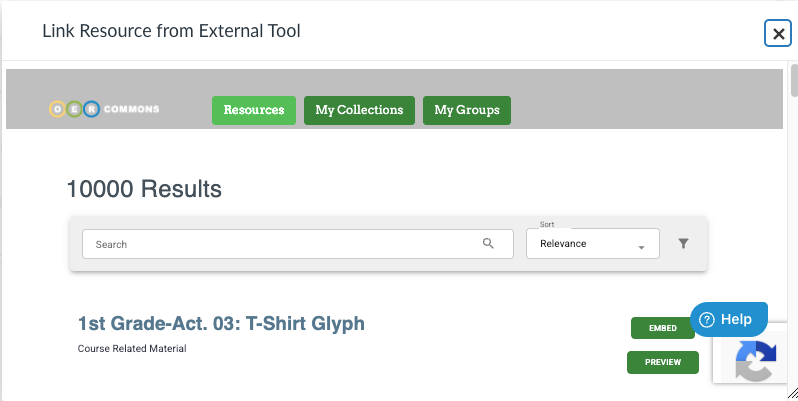
Alt text: Screenshot of the resource selector screen when linking a resource from an external tool.
Click Add Item on the next screen.
Troubleshooting Notes
Sometimes there is a delay due to caching before the administrator setting up the placements can see the tool as an option in external tool.
Modern web browsers (Safari, Chrome, Firefox) enforce strict third-party cookie restrictions (SameSite policies). First-party cookies must be enabled.
When adding links to Canvas Modules, instruct teachers to check "Load in a new tab" if their browser environment blocks embedded cross-domain authentication.
Occasionally, if a user previously had a direct login to the site, they may get a one-time login screen.
Occasionally, a certain type of resource may not load. This is a known issue. Please contact your ISKME contact.
Sometimes, an administrator may need to add the tool in a course before setting up placements. If this happens:
Go to the Course where you wish to install the tool.
Click Settings
Click on Apps.
Click Add App.
Click configuration type By Client ID.
Enter the Client ID. Note: This may change the Deployment Key.
Under Settings / Apps / External Apps, click the Settings wrench next to the tool.
Click Deployment ID.
Provide the new Deployment ID to your ISKME site administrator. They will need to change the deployment id in django.