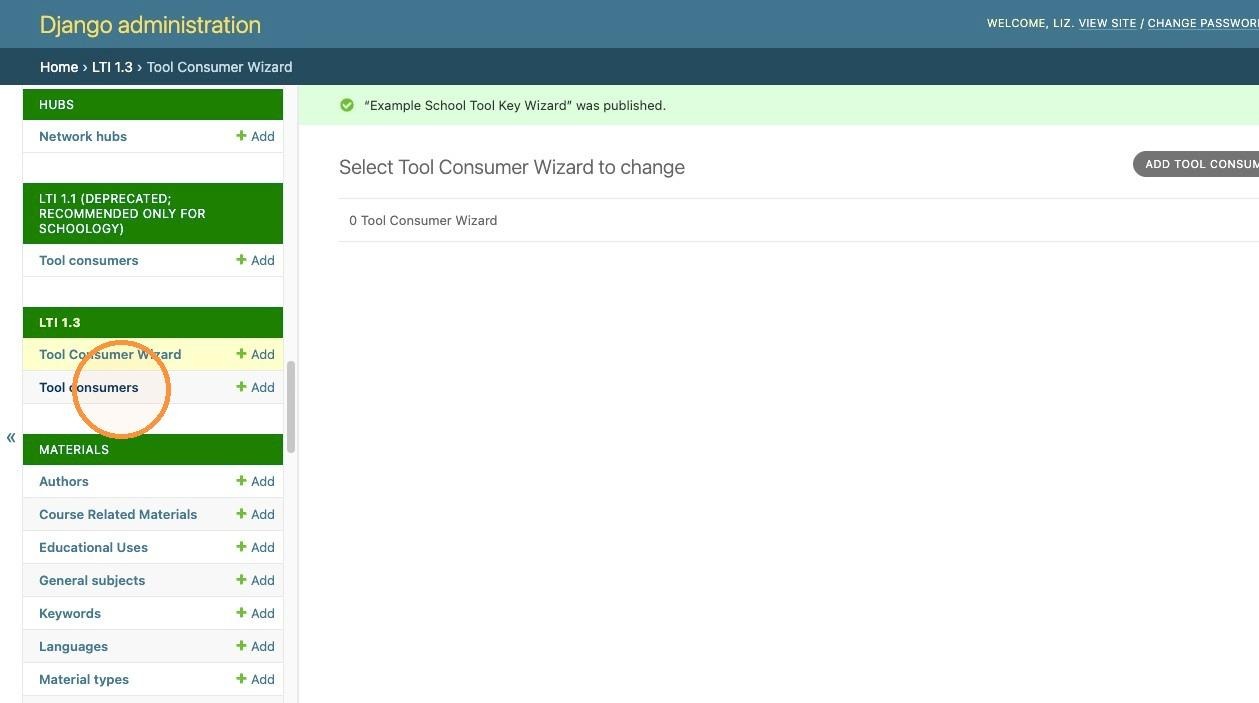
This guide walks you through the technical process of setting up and deploying an LTI 1.3 tool between ISKME microsites and Canvas using the Tool Consumer Wizard.
1. As an ISKME site administrator, navigate to the admin panel of your microsite.
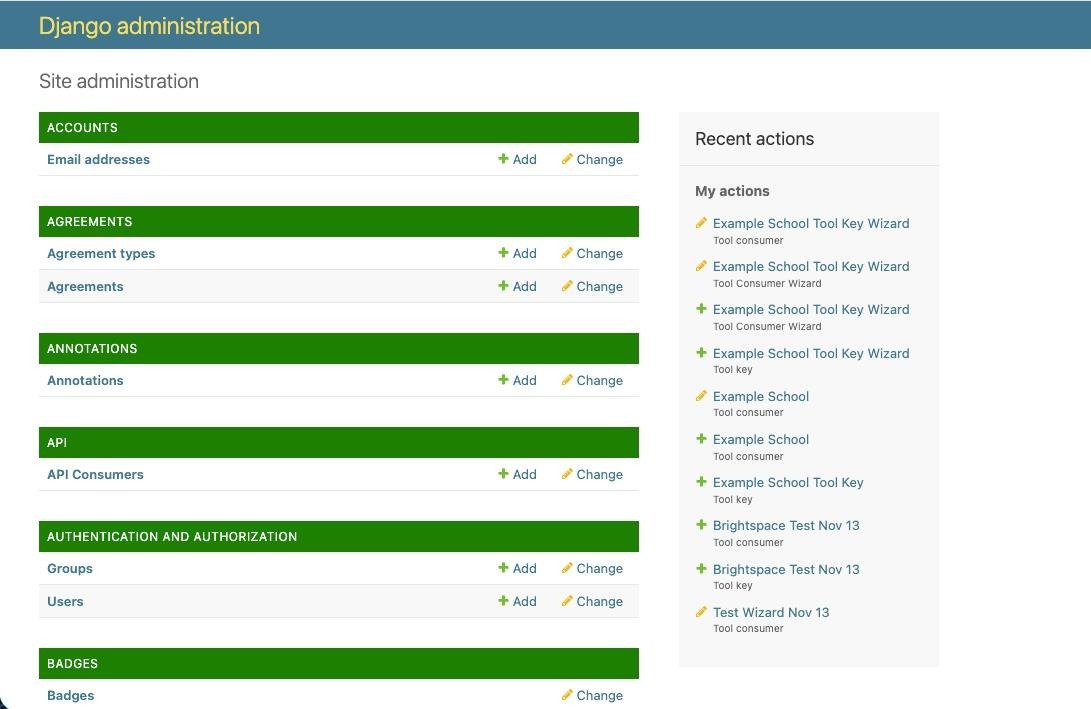
2. Click "Tool Consumer Wizard."
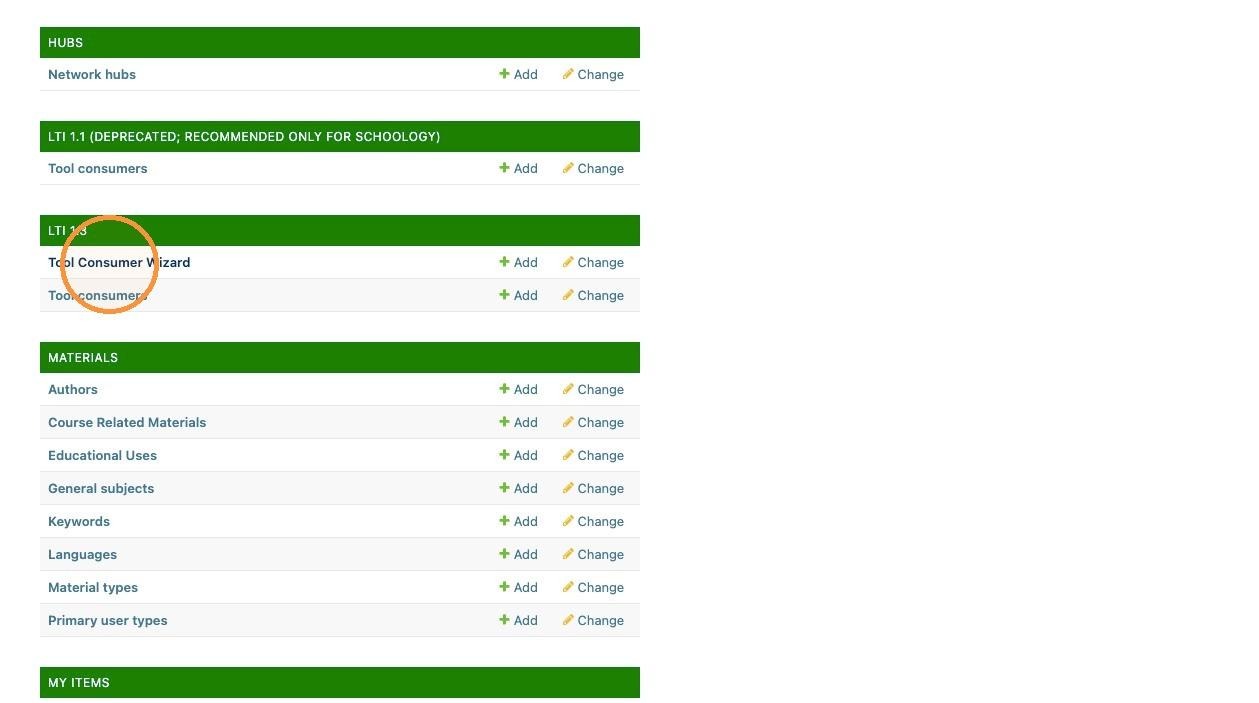
3. Click "Add Tool Consumer Wizard."
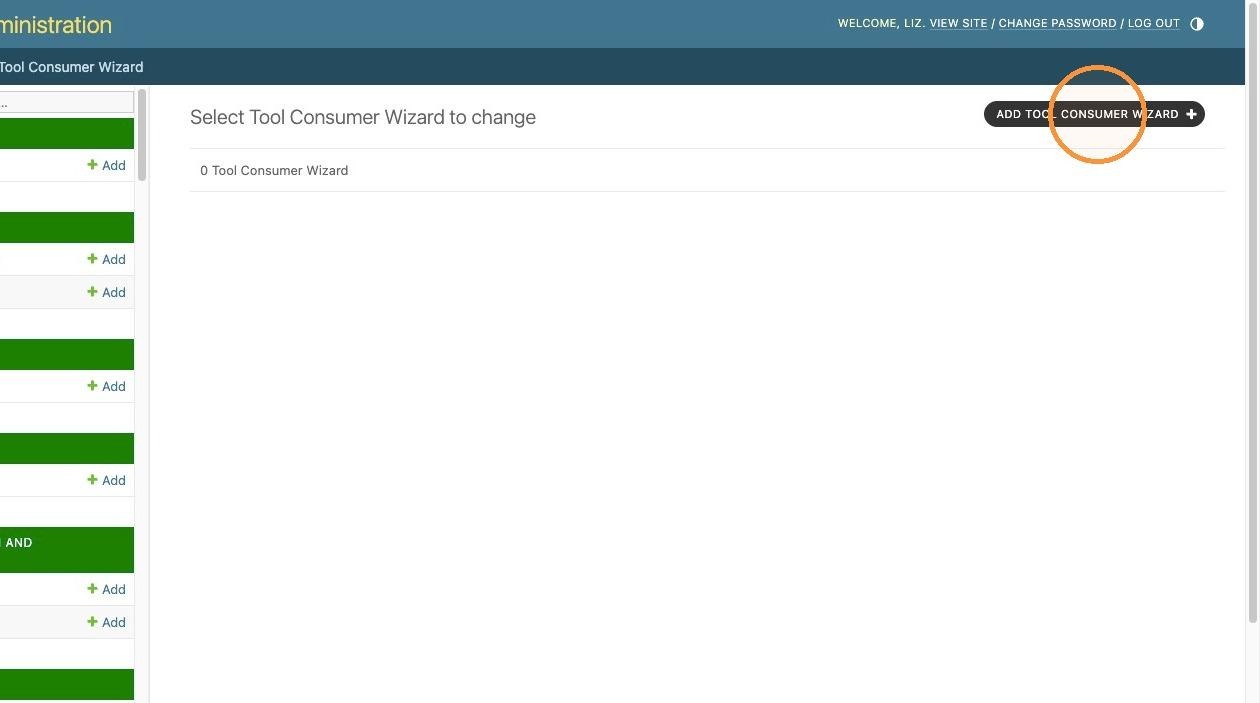
4. Click the plus sign to add a new tool key.
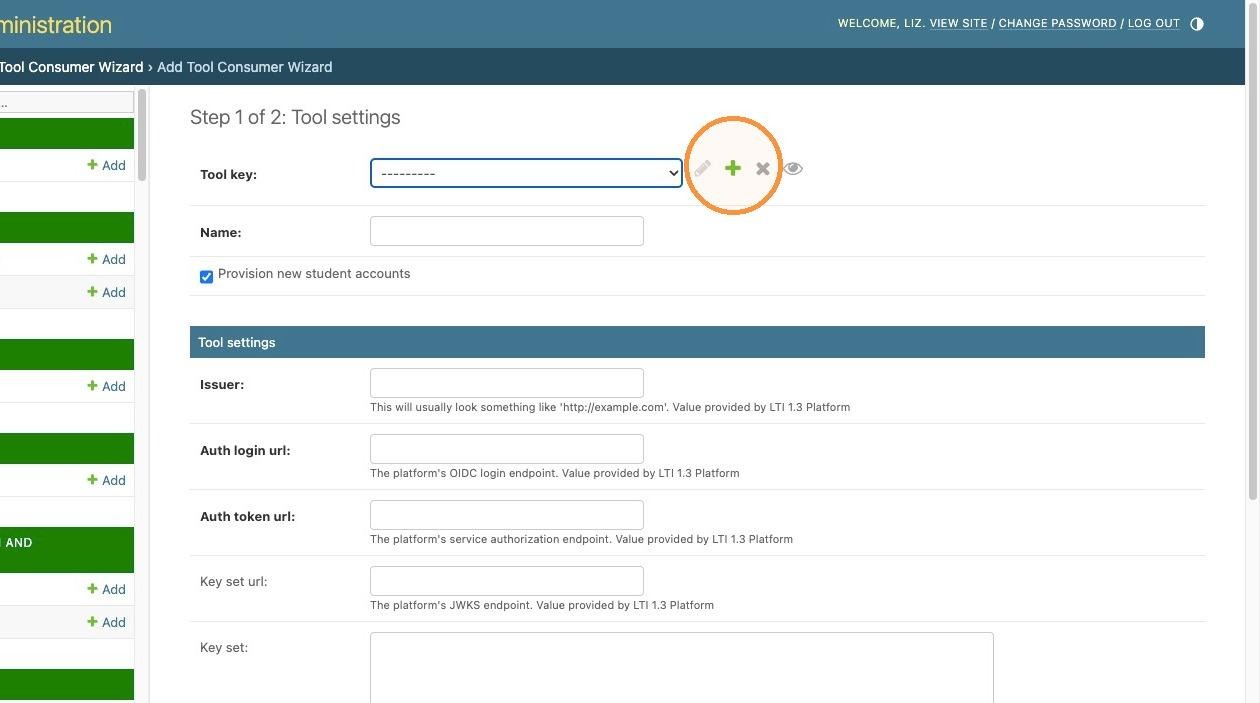
5. Give the tool key a name of your choice. We suggest using the name of the institution or organization connecting. Save.
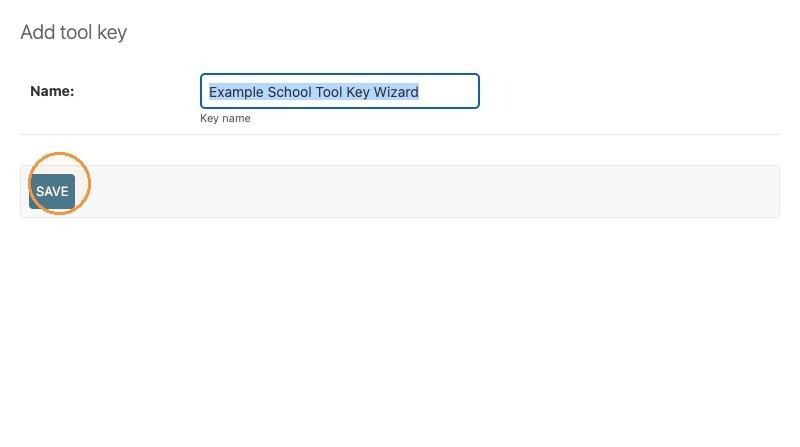
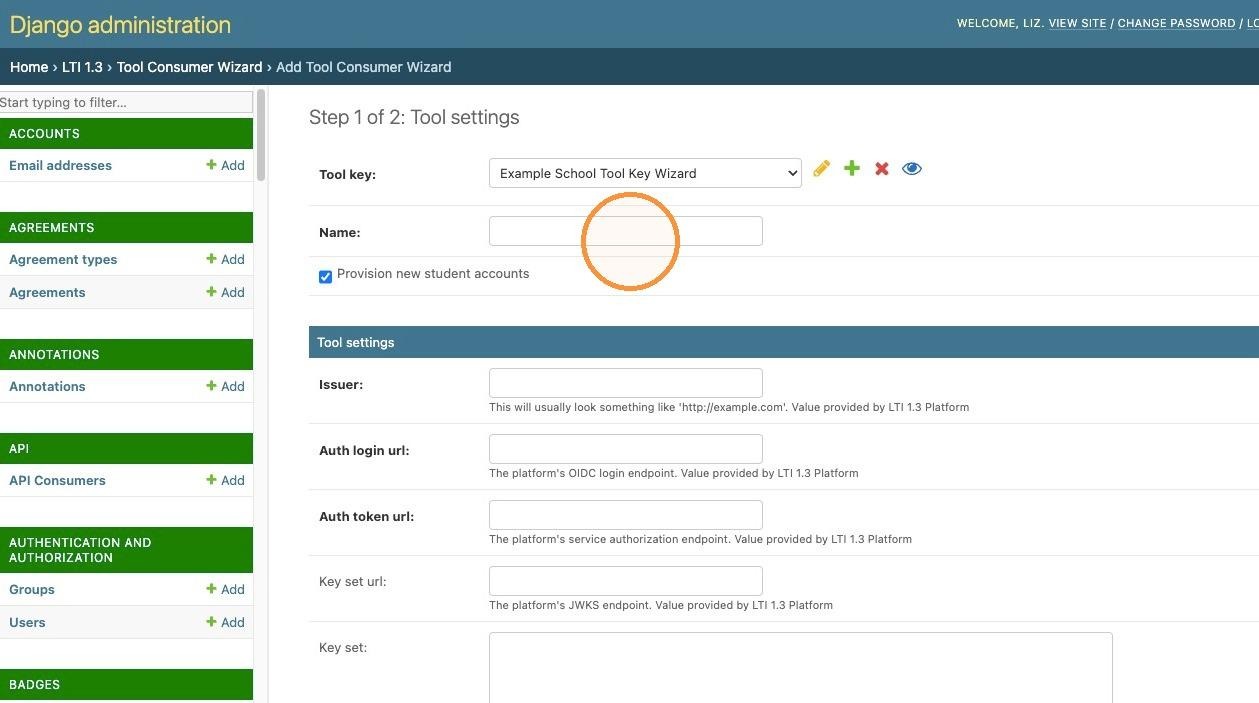
6. Go to the "Name:" field. Give the tool consumer a name of your choice. We suggest using the name of the institution or organization connecting. Save.
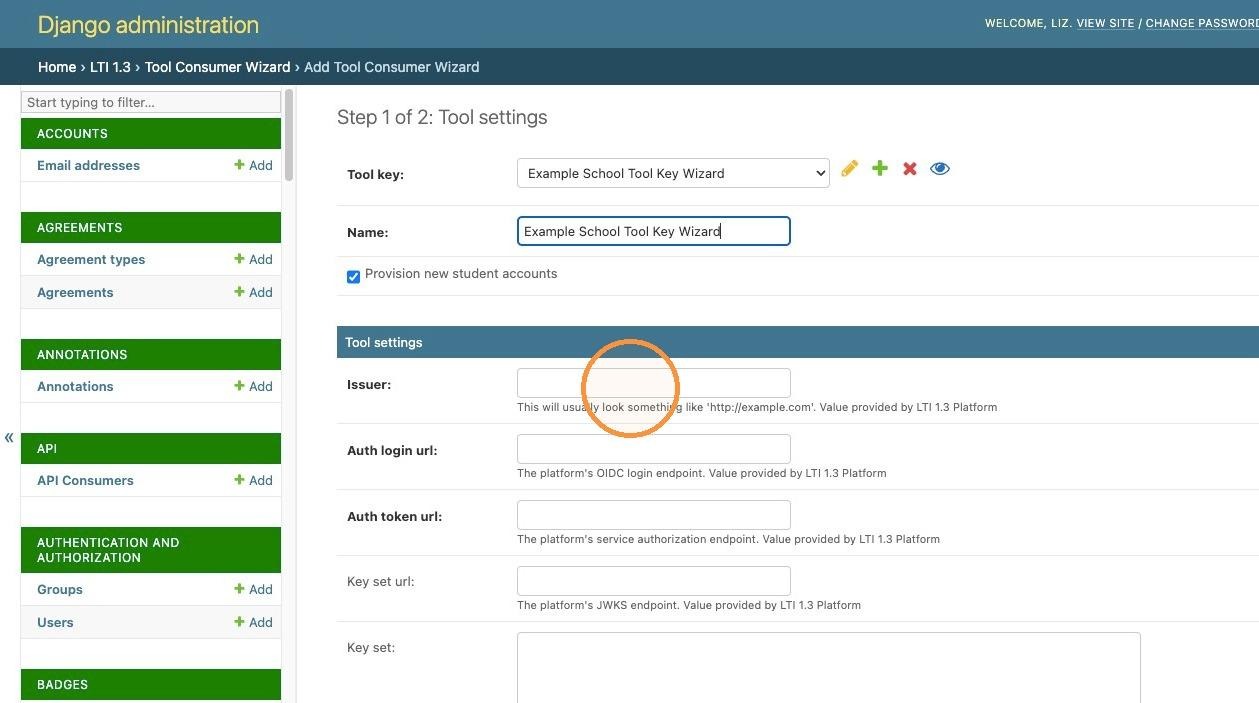
7. Go to the "Issuer:" field. The issuer in Canvas may differ if the institution connecting is using a self-hosted version of Canvas. Instructure offers more information about what to use in the issuer field.
The most common scenarios for Issuer are:
https://canvas.instructure.com (Production environment launches)
https://canvas.beta.instructure.com (Beta environment launches)
https://canvas.test.instructure.com (Test environment launches)
8. Go to the "Auth login url:" field. Fill in the auth login URL from the LMS.
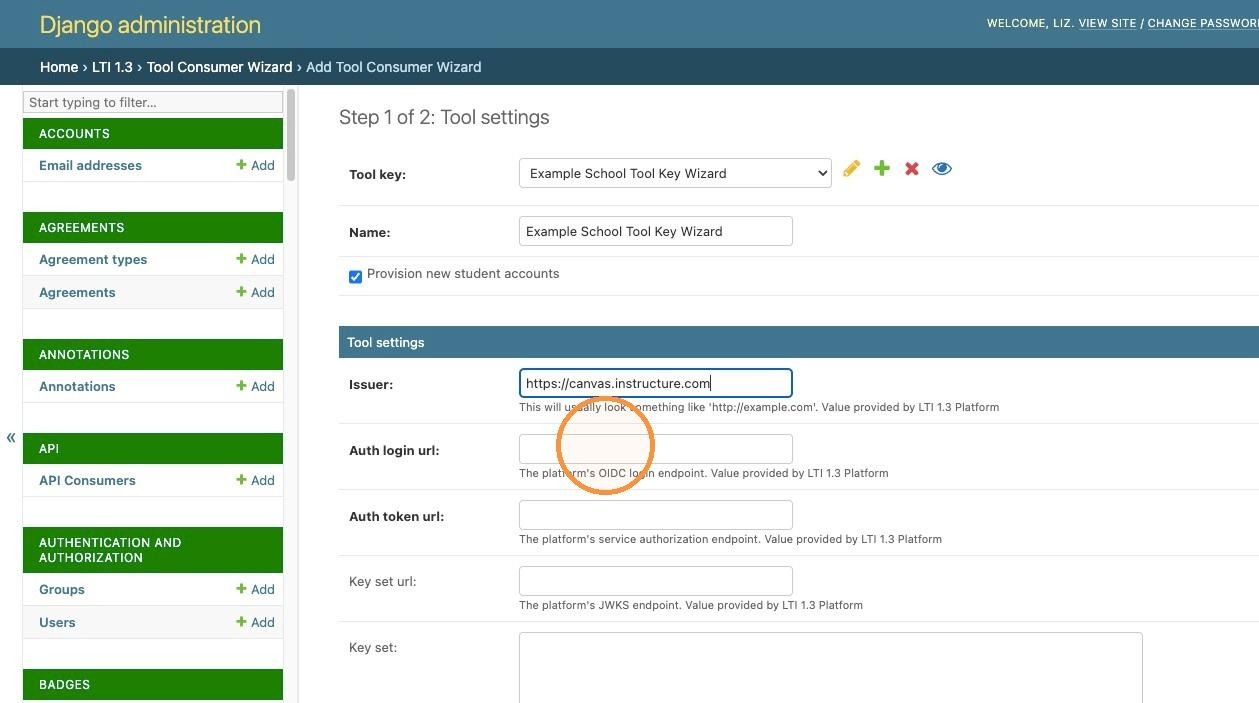
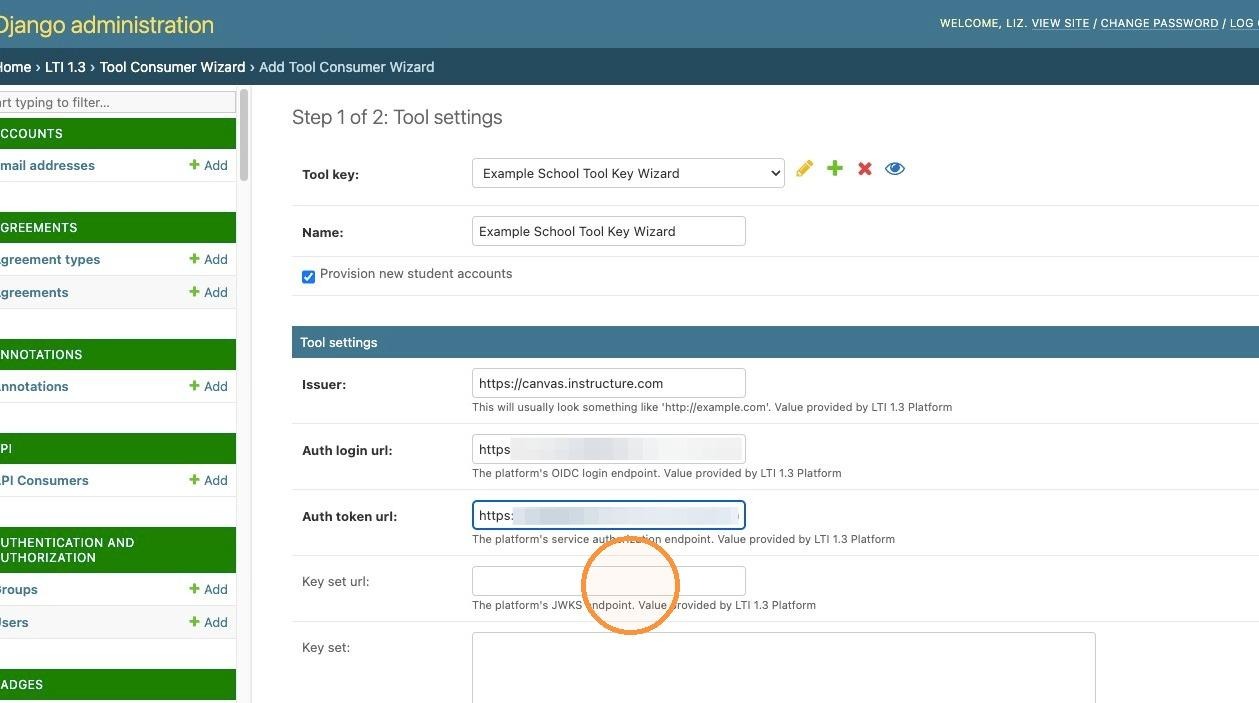
9. Go to the "Auth token url:" field. Fill in the auth token URL from the LMS.
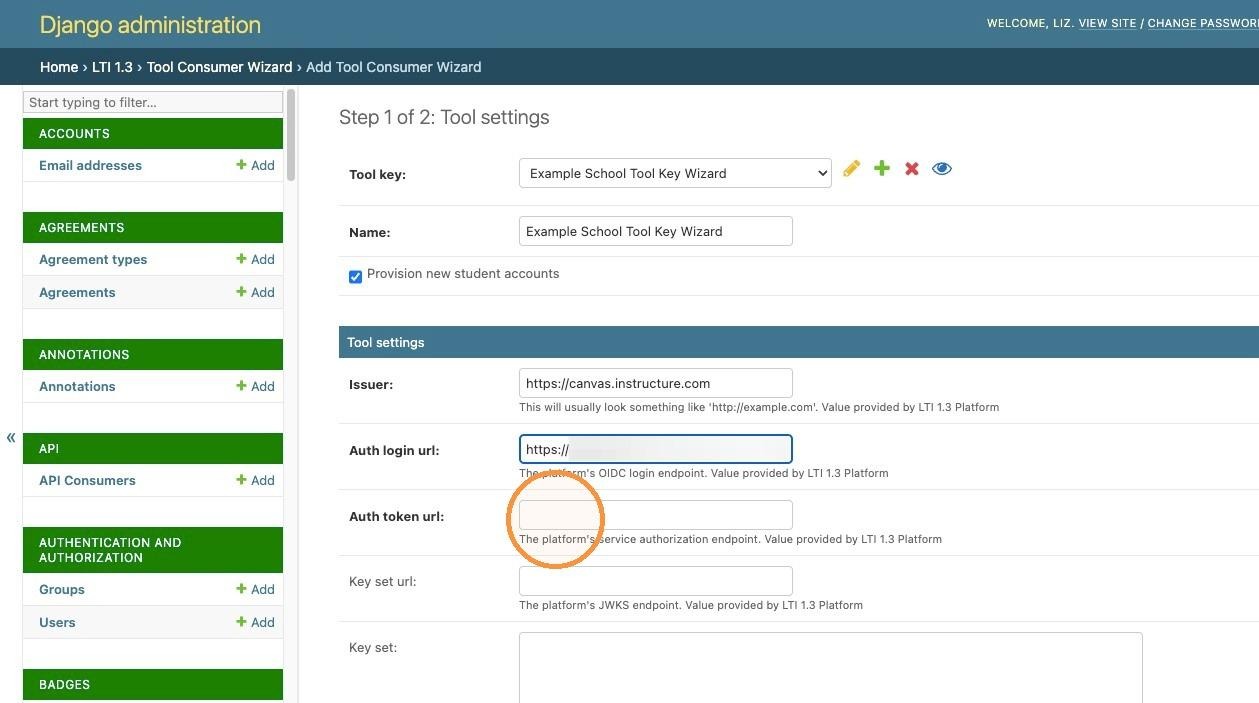
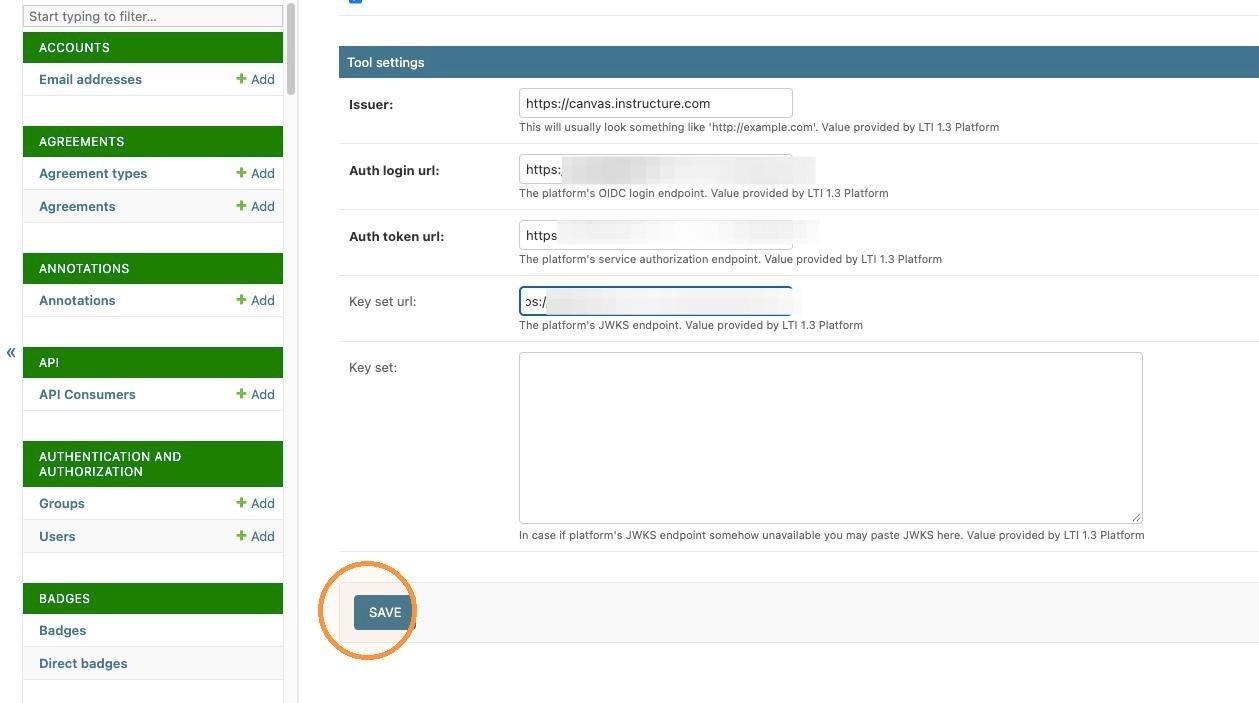
10. Go to the "Key set url:" field. Enter the key set URL from the LMS.
11. Click Save.
12. Go to Canvas with LTI Administrator privileges.
13. Click "Admin."
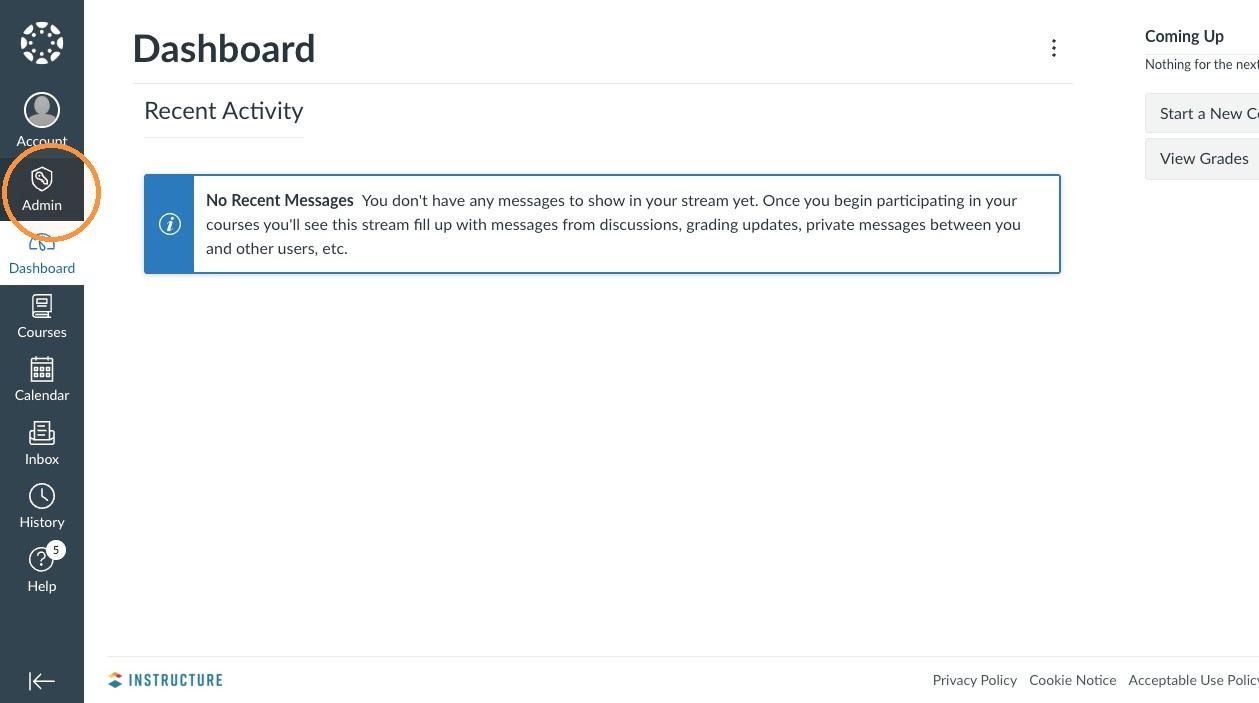
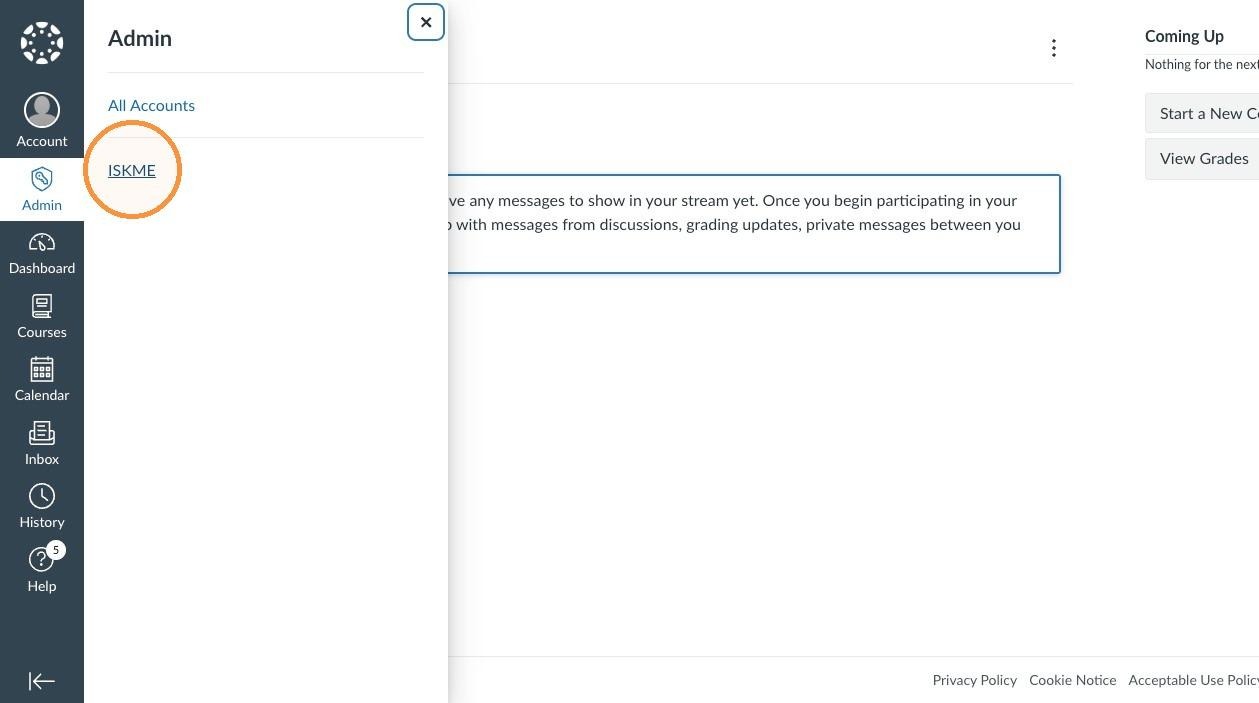
14. Select the account in Canvas where you wish to install the LTI 1.3 tool.
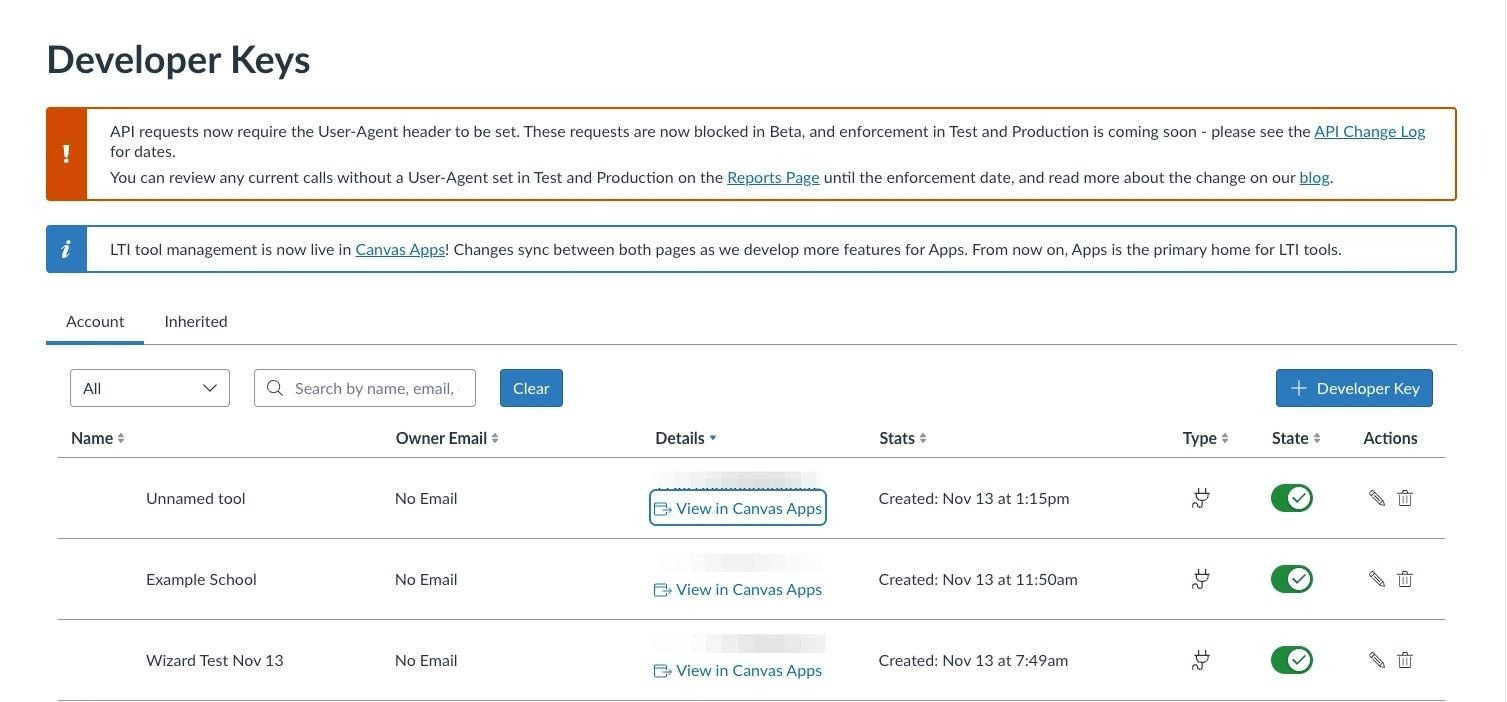
15. Click "Developer Keys."
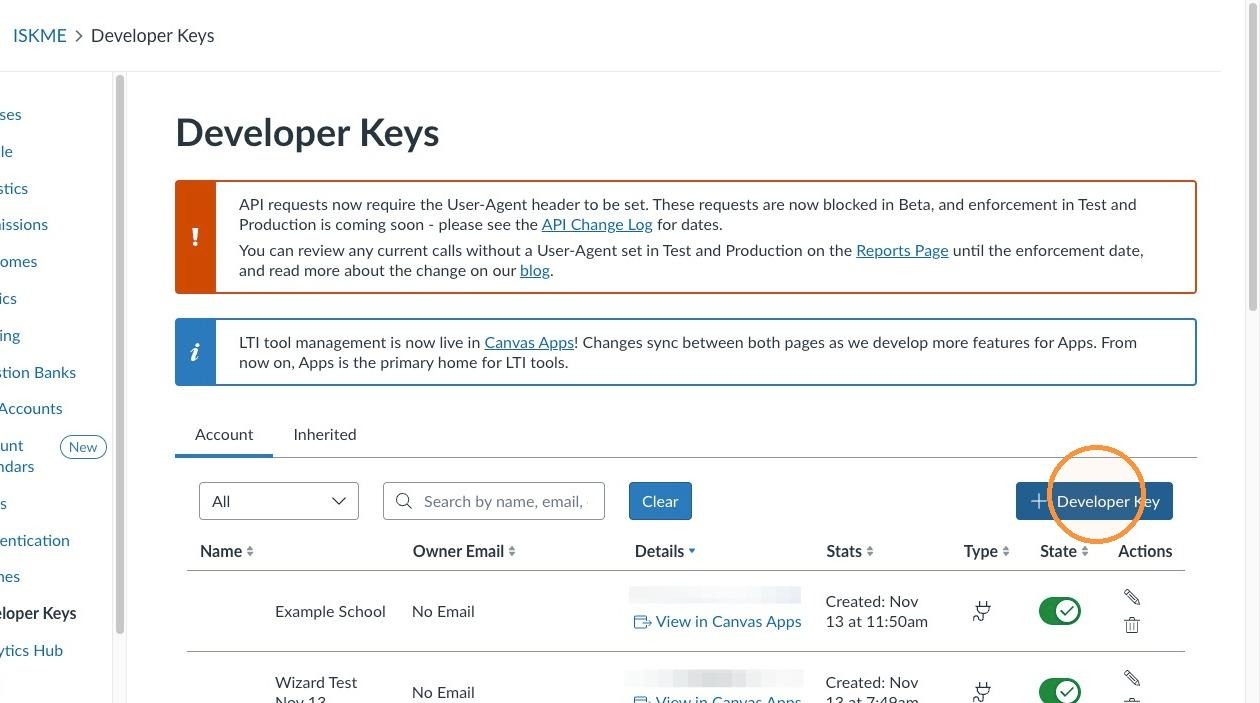
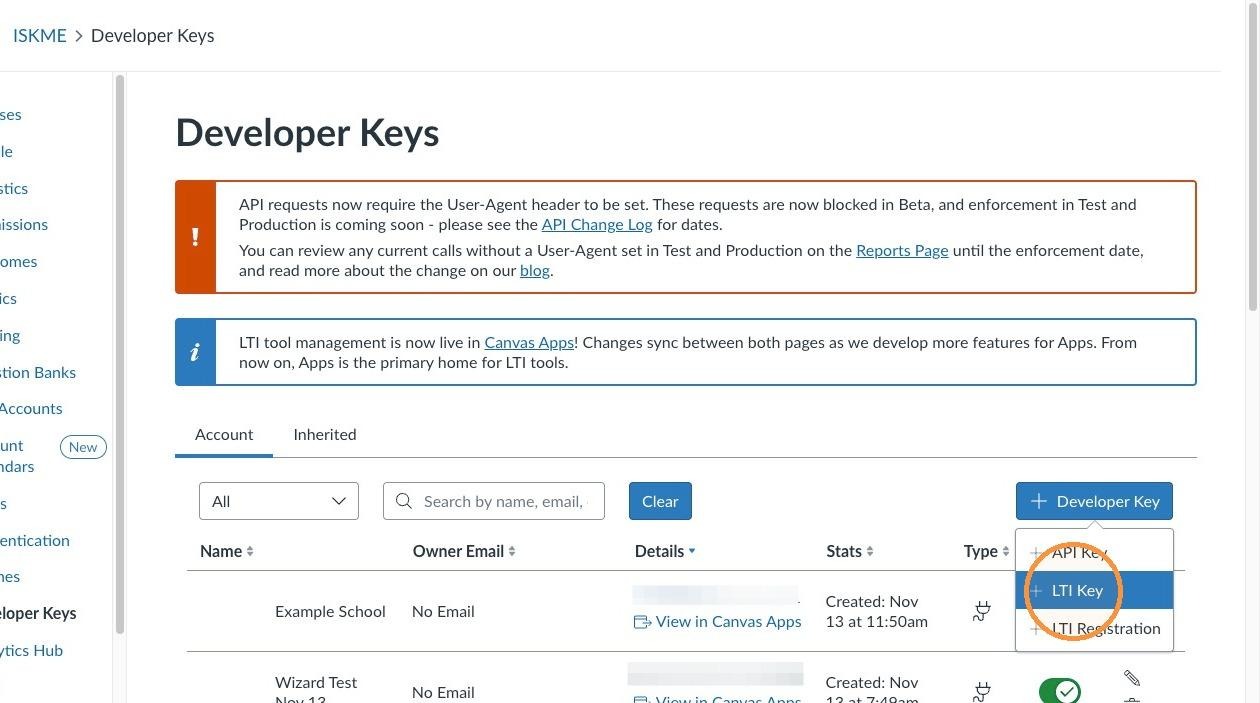
16. Click "+ Developer Key."
17. Click "LTI Key."
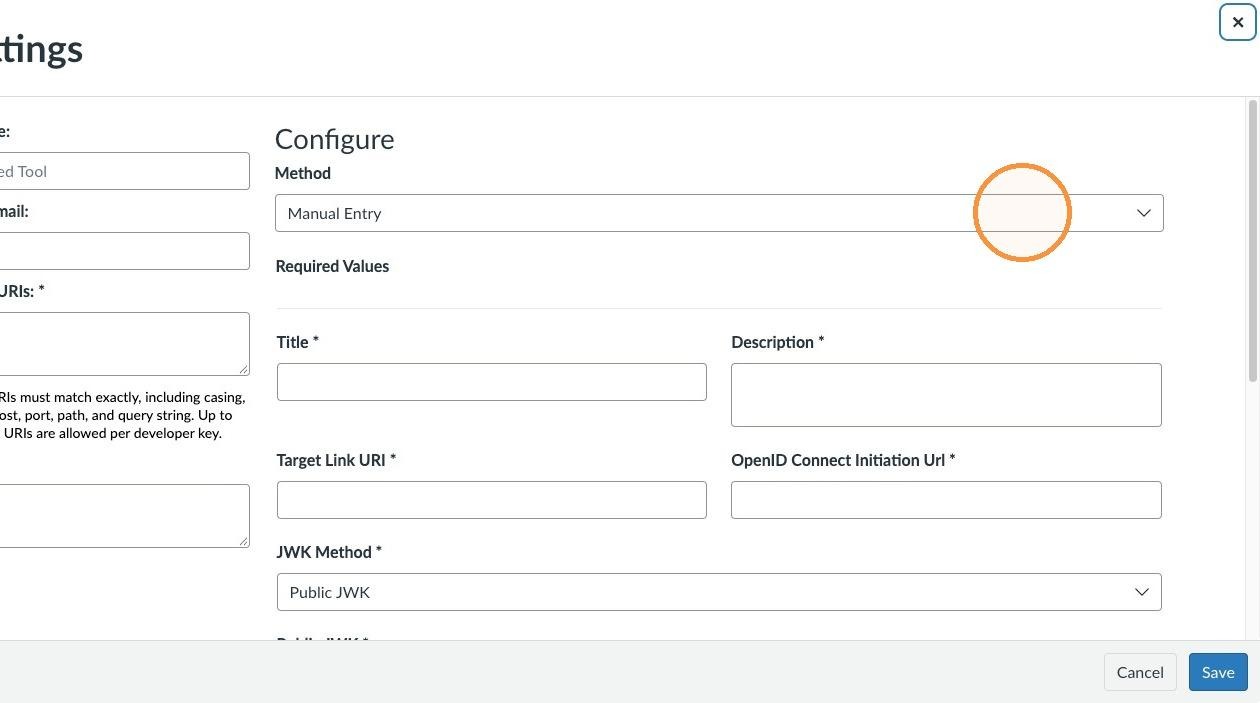
18. Go to the "Method" field.
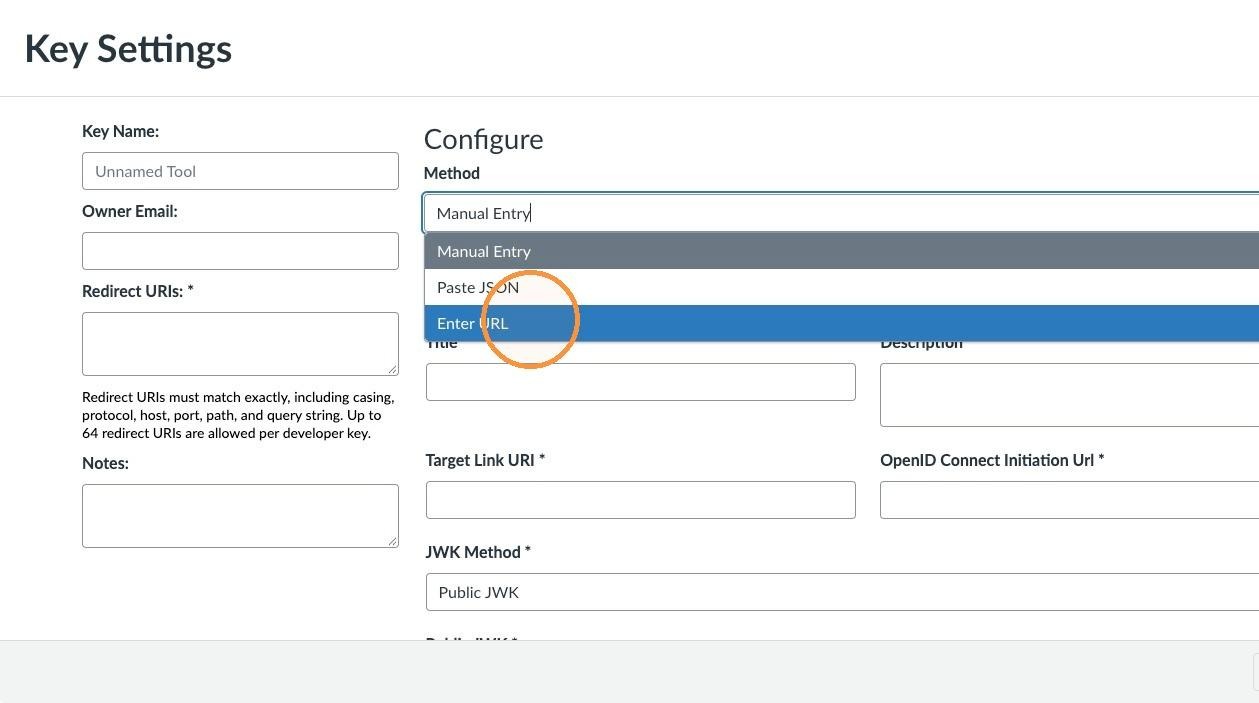
19. Select "Enter URL" from the dropdown menu.
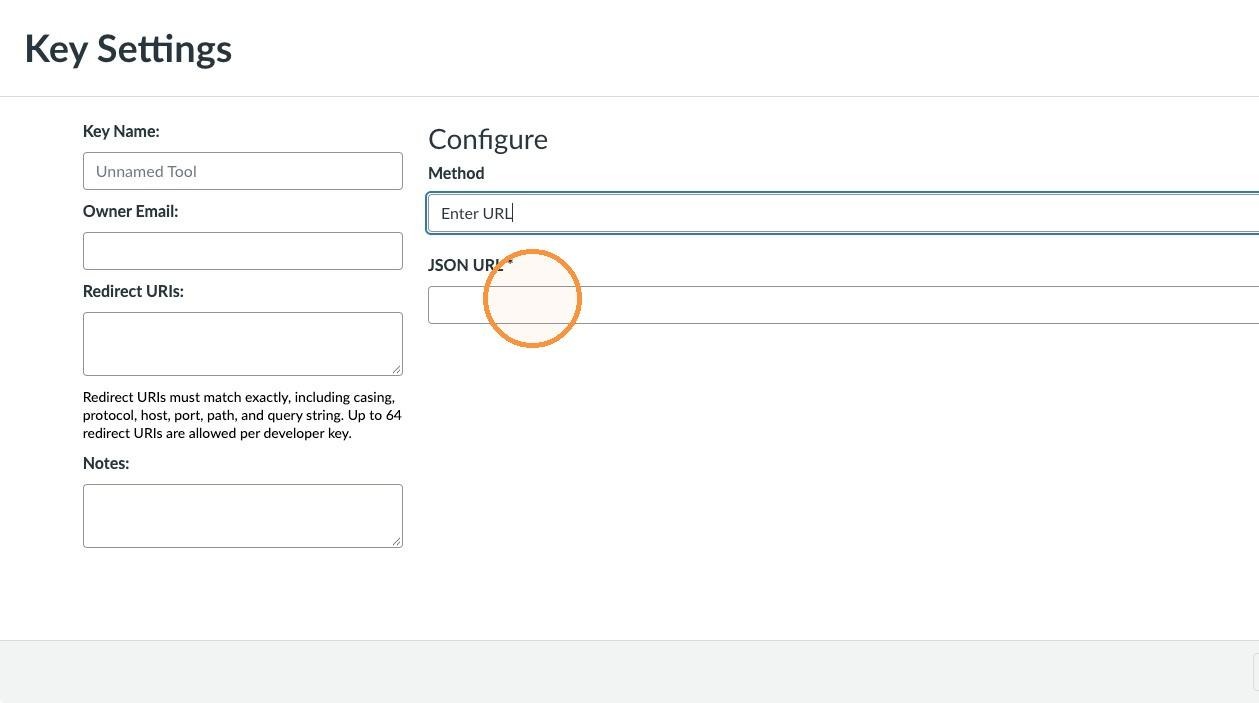
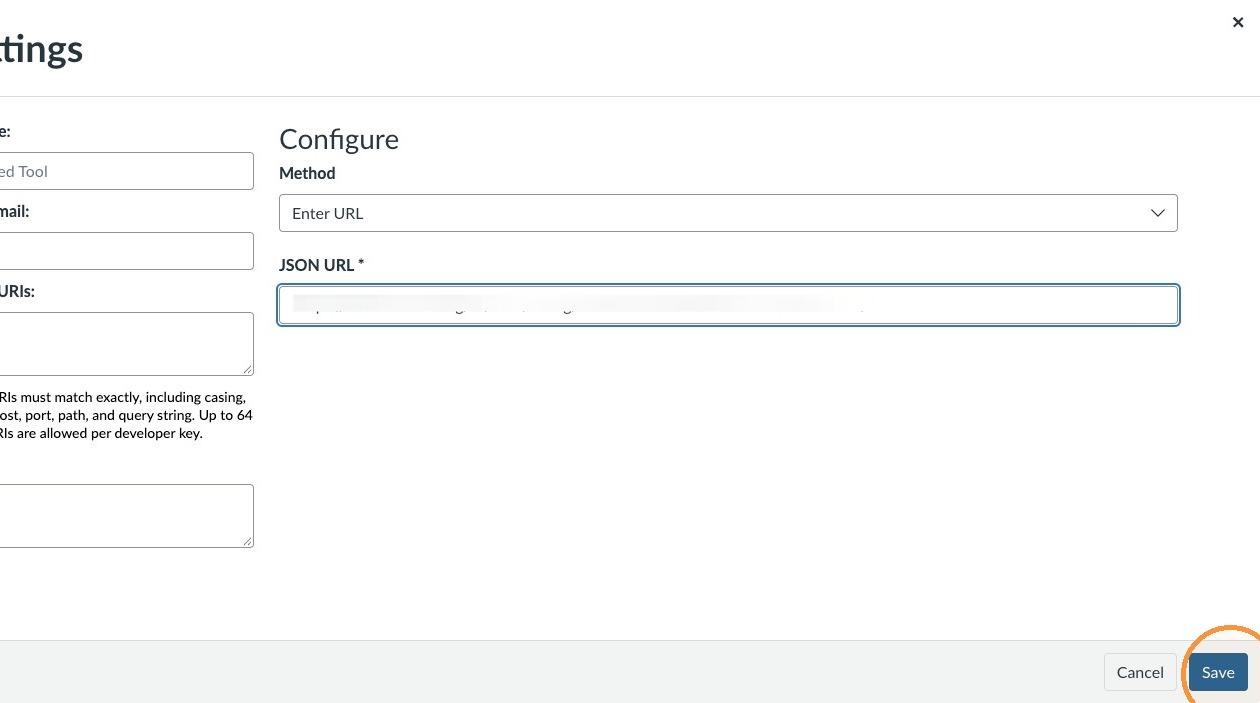
20. In the "JSON URL *" field, copy the Canvas configuration URL provided by the ISKME site administrator in django.
21. Click "Save"
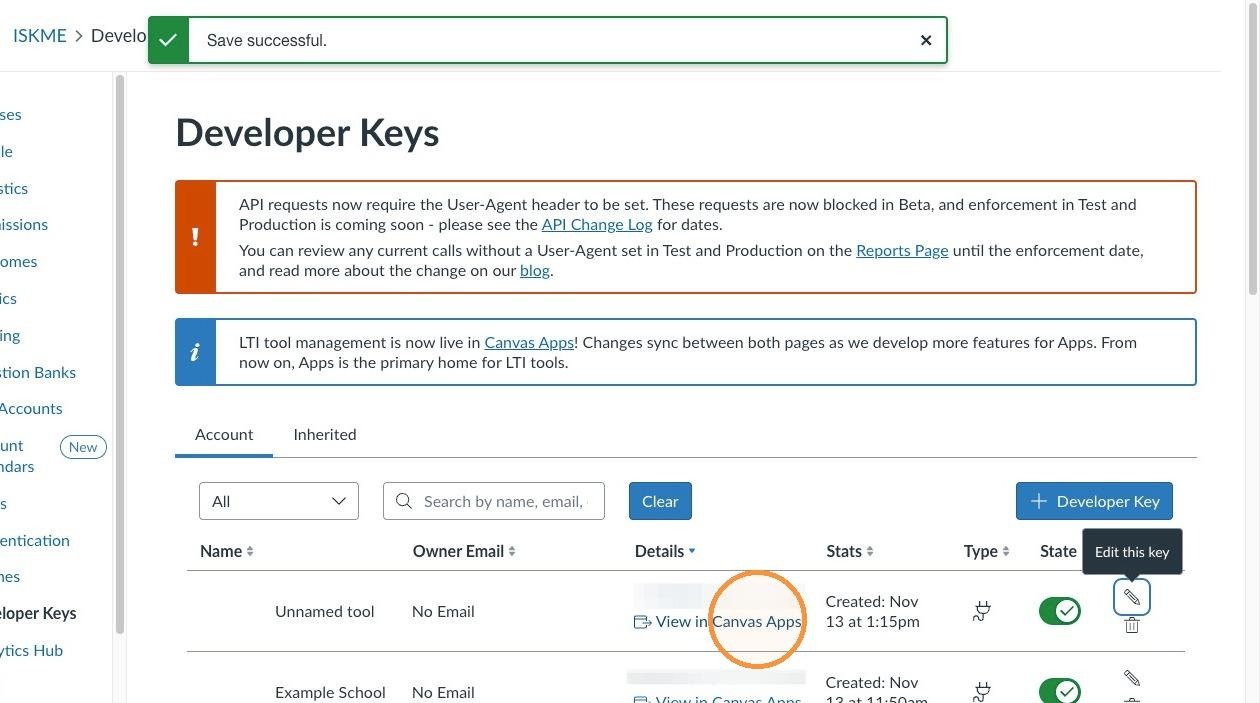
22. Under Developer Keys, for the tool you added, click "View in Canvas Apps"
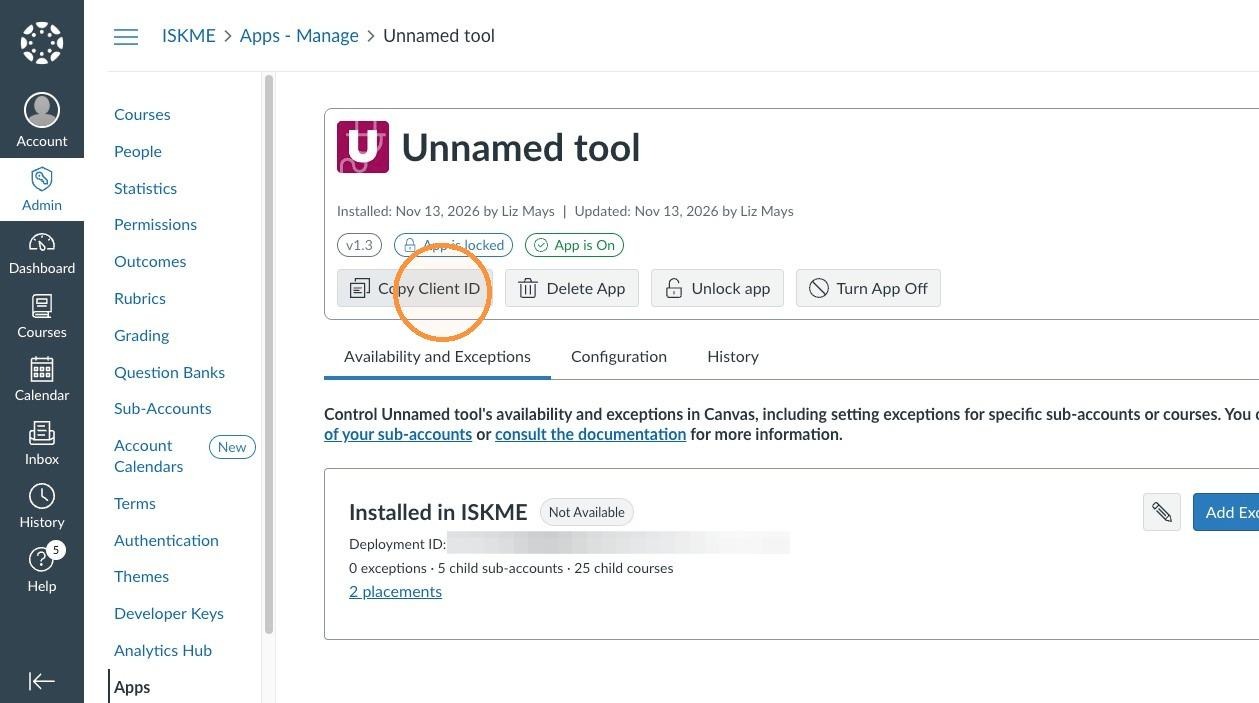
23. Click "Copy Client ID." Provide the Client ID to your ISKME site administrator.
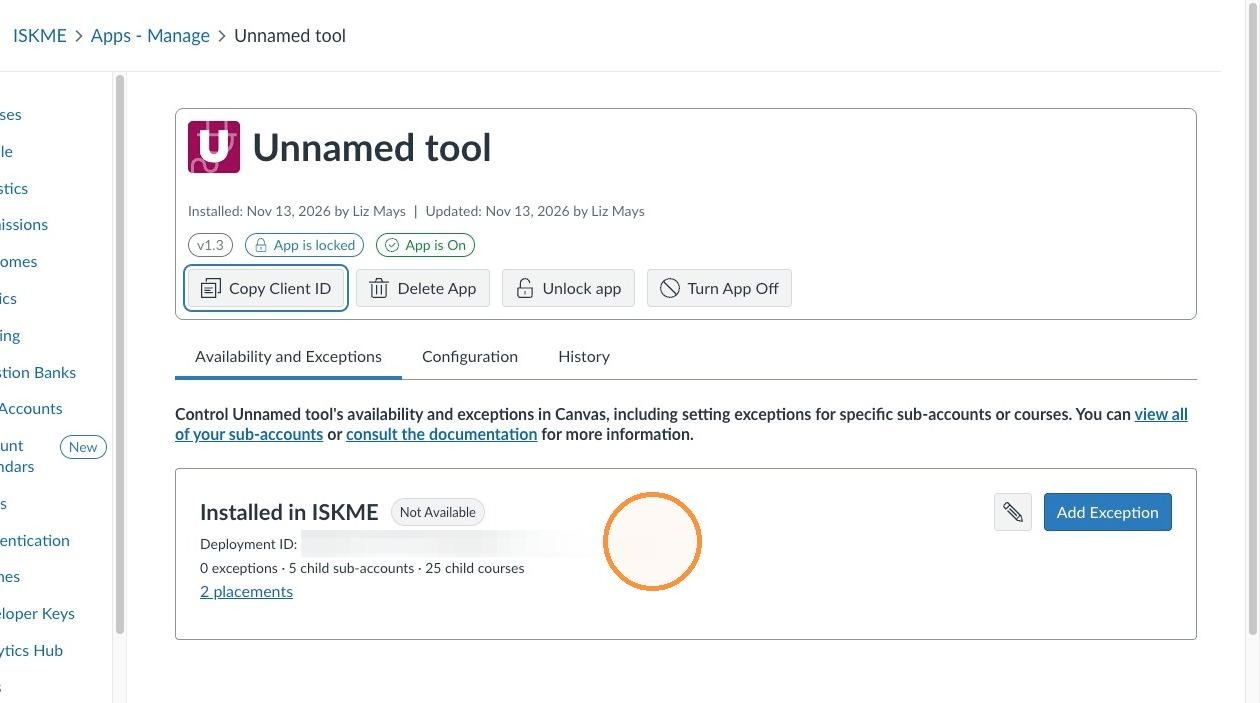
24. Copy the Deployment ID. Provide the Deployment ID to your ISKME site administrator.
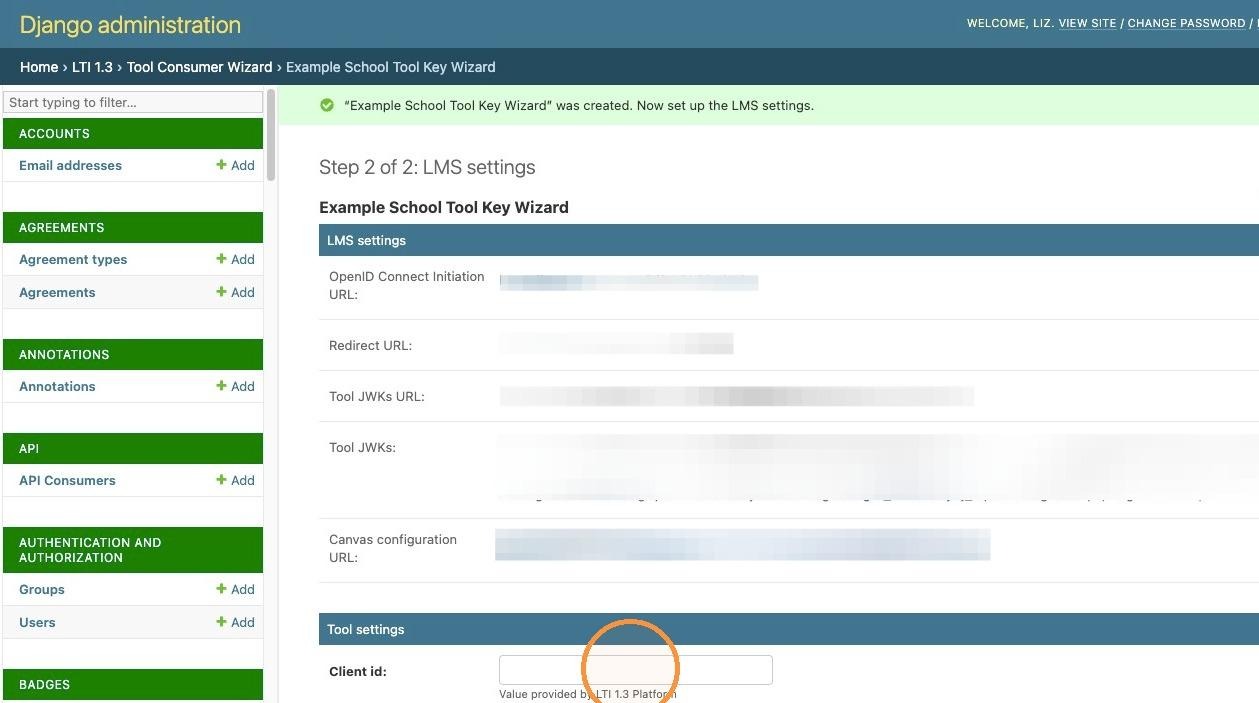
25. As the ISKME site administrator, copy the "Client id:" field into the Tool Consumer.
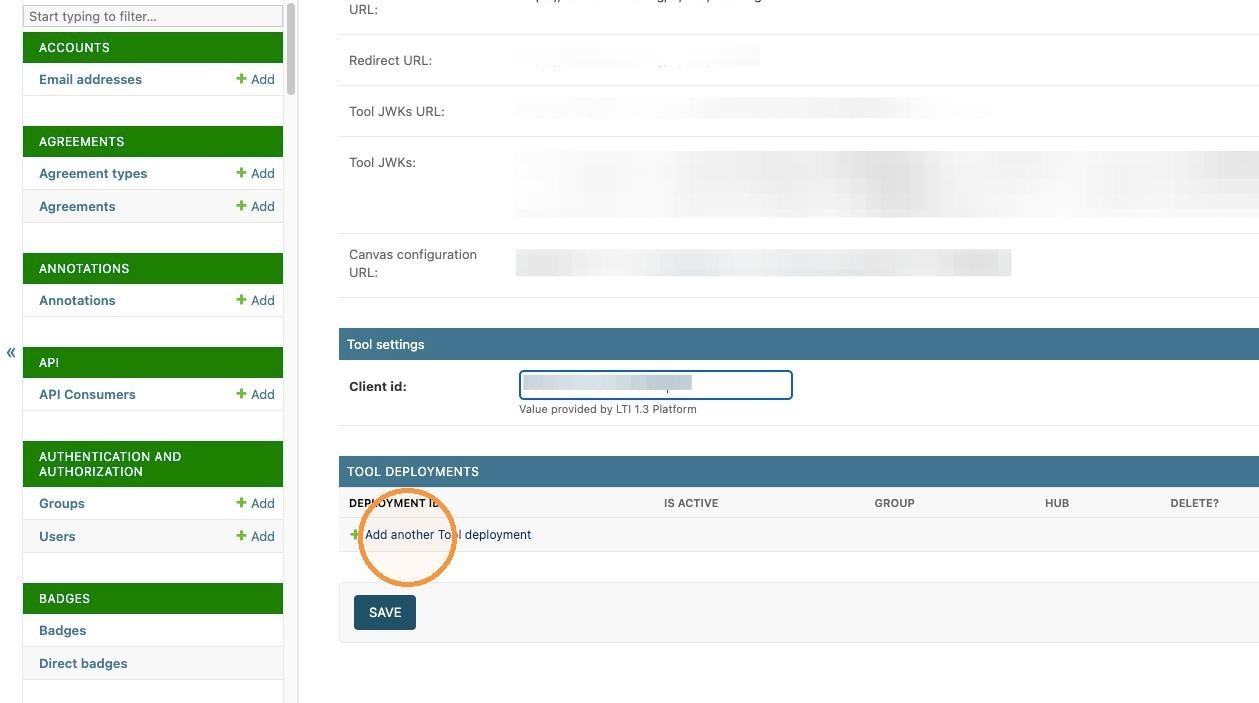
26. Click "Add another Tool deployment."
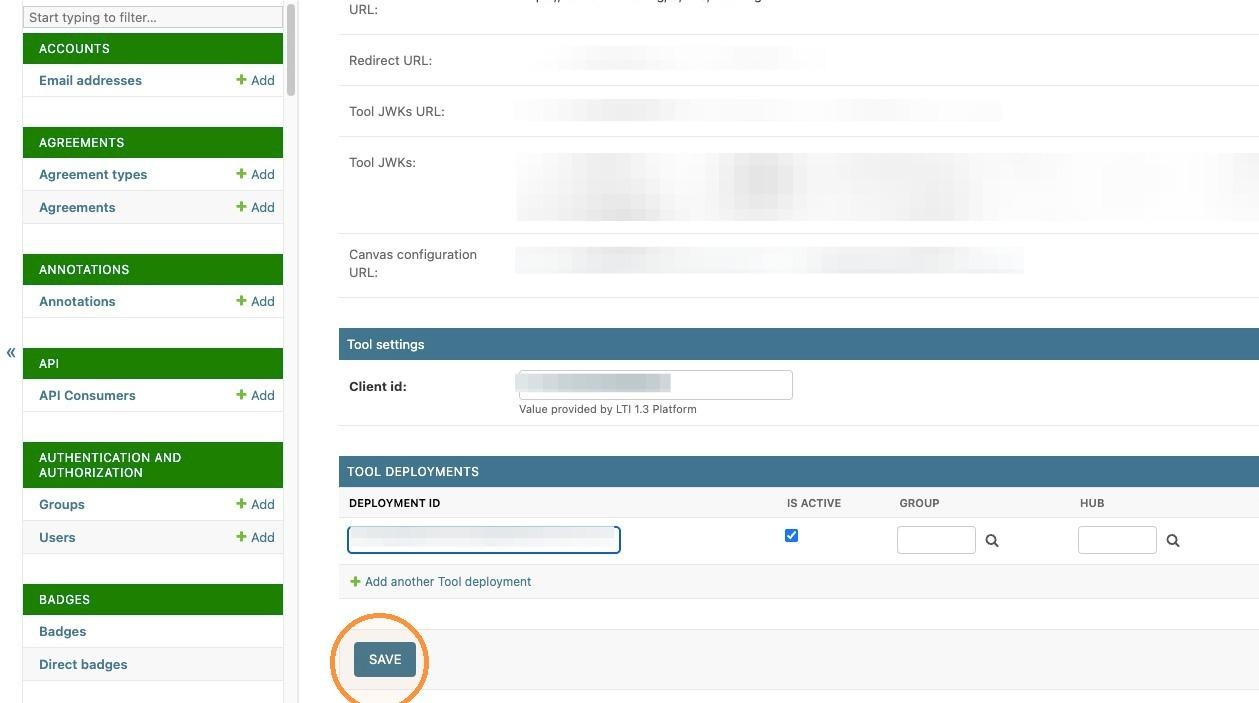
27. As the ISKME site administrator, copy the "Deployment id:" field into the Tool Consumer. Click "Save."
28. Click "Tool Consumers" to find the Tool Consumer you created.